Whether you're designing a simple bracket or developing a complex mechanical assembly, choosing the right modeling approach can significantly impact your productivity. Fusion 360 offers two powerful workflows—Parametric Modeling and Direct Modeling—each designed for different design scenarios.
If you've ever wondered why experienced CAD engineers spend time creating sketches and constraints before modeling, or why some designers simply push and pull faces without worrying about the timeline, this guide will help you understand both methods and when to use them effectively.
What is Parametric Modeling?
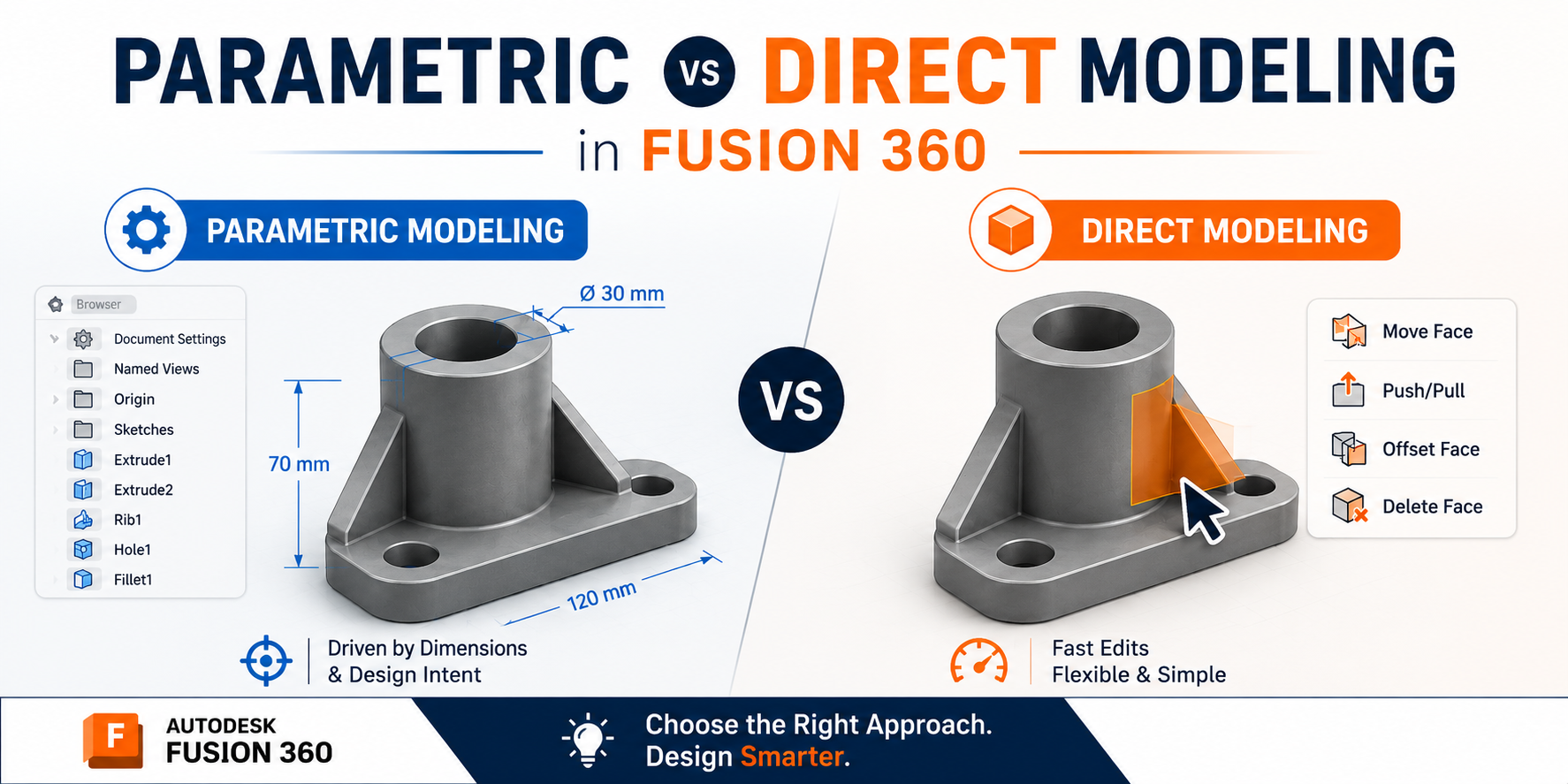
Parametric modeling is a design approach where every feature is created based on parameters, dimensions, and constraints. Every operation you perform—such as sketches, extrusions, fillets, or holes—is recorded in the Timeline at the bottom of Fusion 360.
Instead of recreating a model, you can simply edit an earlier feature and Fusion 360 automatically updates all dependent features.
Key Characteristics
- Feature history is saved.
- Sketch dimensions control the model.
- Design intent is preserved.
- Easy to modify dimensions later.
- Ideal for mechanical engineering projects.
Example Scenario
Imagine designing a mounting plate. You create a sketch, extrude it, add a hole, a fillet, and a chamfer. Later, your customer asks to increase the plate length from 150 mm to 200 mm.
With parametric modeling, simply edit the sketch dimension, and every dependent feature updates automatically. No remodeling required.
Advantages of Parametric Modeling
- Easy Design Changes: Changing one dimension automatically updates the complete model.
- Design Intent: Relationships between features remain intact, making future modifications predictable.
- Better for Assemblies: Large assemblies containing dozens or hundreds of parts become easier to manage because each component updates consistently.
- Faster Engineering Revisions: Engineering Change Orders (ECOs) become much easier since dimensions and features remain editable.
- Manufacturing Ready: Works exceptionally well for CNC machining, sheet metal, injection molds, mechanical products, and consumer products.
Limitations of Parametric Modeling
- Complex feature trees can become hard to manage.
- Requires longer planning before modeling.
- Timeline errors can occur if features depend on deleted geometry.
- Large assemblies may rebuild slowly.
What is Direct Modeling?
Direct Modeling allows you to modify geometry directly without relying on sketches or feature history. Instead of editing a sketch, you simply select faces and manipulate them using operations like Move Face, Push/Pull, Offset Face, Delete Face, and Rotate Face.
Example Scenario
Suppose a supplier sends you a STEP file. Since imported STEP files often have no editable sketches or timeline, changing dimensions using parametric methods becomes difficult.
With Direct Modeling, you simply select the face, drag it outward, and enter a new distance. Done—no need to recreate the model.
Advantages of Direct Modeling
- Extremely Fast: Perfect for quick, visual edits.
- Great for Imported CAD Files: Works seamlessly with STEP, IGES, Parasolid, and SAT files.
- No Timeline Problems: Since there is no dependency chain, edits are straightforward.
- Easy Geometry Editing: Perfect for vendor parts, legacy models, reverse engineering, and concept modifications.
- Ideal During Concept Design: Lets you experiment with shapes freely without setting up constraints.
Limitations of Direct Modeling
- No feature history is maintained.
- Difficult to automate future parametric changes.
- Less suitable for highly controlled, revision-heavy engineering projects.
- Limited preservation of design intent.
Parametric vs Direct Modeling Comparison
| Feature | Parametric Modeling | Direct Modeling |
|---|---|---|
| Timeline | Yes | No |
| Editable Sketches | Yes | Not Required |
| Design Intent | Excellent | Limited |
| Best for Engineering | Excellent | Moderate |
| Imported Files | Moderate | Excellent |
| Speed of Quick Changes | Moderate | Excellent |
| Large Design Updates | Excellent | Limited |
| Manufacturing Workflow | Excellent | Good |
| Assemblies | Excellent | Good |
| Learning Curve | Moderate | Easy |
When Should You Use Each Method?
Choose Parametric Modeling for:
- Designing new products from scratch.
- Creating production-ready parts and machine components.
- Working with assemblies and sheet metal parts.
- Building injection molds and engineering drawings.
- Collaborating with manufacturing teams.
Choose Direct Modeling for:
- Editing supplier CAD files or modifying STEP models.
- Making quick geometry adjustments on the fly.
- Repairing broken or non-native imported geometry.
- Reverse engineering and rapid prototyping.
Combining Both Workflows
One of Fusion 360's biggest strengths is allowing designers to combine both workflows. For instance, you can build your core product using Parametric Modeling, but when a vendor sends an imported STEP file, you can modify that component instantly using Direct Modeling tools without breaking your main design timeline.
Real Engineering Example: Industrial Gearbox
- Housing: Designed parametrically because dimensional adjustments are likely throughout testing.
- Purchased Bearings: Imported as supplier STEP files and adjusted directly if slight geometry tweaks are needed.
- Mounting Plate: Built parametrically to allow quick revisions based on mounting specs.
- Vendor Motor: Modified via Direct Modeling to quickly fit spatial constraints without rebuilding the CAD.
Best Practices & Common Mistakes
- Fully Constrain Sketches: Avoid leaving unconstrained geometry in parametric models.
- Protect the Timeline: Be cautious when deleting early features, as downstream geometry might break.
- Don't Overuse Direct Edits: Avoid Direct Modeling for native parts if you plan to iterate on dimensions later.
- Plan Design Intent: Take a moment to think about how your model will change before placing your first sketch.
Master Fusion 360 with Real Industry Projects
Want to move beyond the basics and become job-ready? The Fusion 360 Mastery Pack from CADArtifex is designed to help students, engineers, and professionals master Fusion 360 through structured lessons and practical projects.
What You'll Learn
- Complete Fusion 360 fundamentals & Parametric 3D modeling
- Surface modeling & Sculpt environment
- Assemblies, joints & Engineering drawings
- Rendering, visualization & Manufacturing workflows
- Real-world mechanical projects
Why Choose This Course?
- 6-in-1 comprehensive course bundle (Beginner to Advanced)
- Hands-on project-based learning with lifetime access
Frequently Asked Questions (FAQs)
Is Fusion 360 parametric or direct modeling?
Fusion 360 supports both parametric and direct modeling, allowing users to switch workflows dynamically based on their project needs.
Which modeling method is better for beginners?
Parametric modeling is recommended to start, as it teaches core engineering practices and how feature relationships work.
Can I edit STEP files in Fusion 360?
Yes. Fusion 360 provides direct modeling tools that make modifying imported non-native files like STEP, IGES, and Parasolid easy without rebuilding them.
Which workflow is used in manufacturing?
Parametric modeling is primarily used for production designs to maintain revision history, while direct modeling is used for quick edits to imported CAD data.
Should I learn both modeling methods?
Yes. Mastering both techniques equips you to tackle real-world CAD challenges quickly and accurately, making you a far more versatile designer.
 - 452-360x220.png)