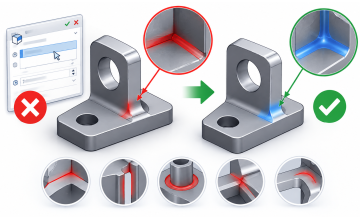
You’ve made a few sketches, added some features, and your part looks right. Then you change a dimension—and suddenly SOLIDWORKS shows an error.
This is a common experience when learning mechanical part design. A rebuild error usually means a feature can no longer find the geometry or references it needs. The good news: you can often fix the problem without starting over.
Here are seven common rebuild problems beginners encounter, using a simple mounting bracket as an example.
1. The sketch won’t extrude
What you see: The Extruded Boss/Base or Cut-Extrude feature fails.
Why it happens: The sketch may have a tiny gap, overlapping lines, or an unintended open contour. SOLIDWORKS needs a valid closed boundary for many solid features.
Try this: Edit the sketch and use Tools > Sketch Tools > Check Sketch for Feature to locate gaps or other issues. Zoom in around corners, remove duplicate lines, and make sure the outline closes.
Example: A bracket outline that looks closed on screen may have a small gap where two lines almost meet. The gap can prevent the sketch from forming a solid profile.
2. A feature depends on a face that disappears
What you see: A hole, fillet, or cut fails after you change an earlier dimension.
Why it happens: The feature was attached to a face or edge that changed or disappeared when the model rebuilt. Later features can lose their references when the shape changes.
Try this: Edit the failed feature and reselect a stable reference. When practical, sketch on a main plane or use a clearly defined datum plane instead of relying on a small face created by another feature.
Example: You sketch a mounting hole on the narrow end face of a bracket. Later, you shorten the bracket and remove that face. The hole feature no longer has a surface to use.
3. Changing a dimension makes a cut fail
What you see: A cut works at one size but fails when you make the part thicker or move the sketch.
Why it happens: The cut may no longer intersect the part, or its end condition may not match the new geometry.
Try this: Check the cut direction and end condition. Through All is useful when the hole should pass completely through the part. Use Blind when the hole needs a specific depth. If the cut should stop at another surface, consider Up to Surface.
Example: A hole in a bracket is set to a fixed depth. After the bracket becomes thicker, the cut no longer reaches the other side. Changing the end condition to Through All may better match the design intent.
4. The sketch becomes over-defined
What you see: SOLIDWORKS reports that the sketch is over-defined, or a dimension turns red.
Why it happens: The sketch has conflicting instructions. For example, a line may already be fixed by a relation, then receive a dimension that tries to move it somewhere else.
Try this: Edit the sketch and inspect the highlighted dimension or relation. Remove redundant dimensions or relations instead of adding more. Use Display/Delete Relations to see what is controlling the geometry.
Example: You set a hole’s horizontal position with a dimension, then add a coincident relation that also fixes its position. One of those constraints may be unnecessary or conflicting.
5. The sketch is under-defined and moves unexpectedly
What you see: Geometry shifts when you edit another dimension, or the finished feature changes shape in an unexpected way.
Why it happens: Some sketch elements are still free to move or rotate. A sketch can look correct while still having unconstrained geometry.
Try this: Add the dimensions and relations needed to capture the intended shape and position. For a bracket profile, that might mean setting the overall width and height, aligning key edges, and defining the hole locations. Aim to fully define important design geometry; avoid fixing everything in place without considering how it should change.
Example: A circular hole has the correct diameter but no location dimensions. When the bracket’s outline changes, the hole slides to a different position.
6. A fillet or chamfer fails after an edit
What you see: The model rebuilds until a fillet or chamfer, which then fails.
Why it happens: The selected edge may have changed, or the requested radius may be too large for the available material. Small fillets near corners or intersecting features are especially sensitive.
Try this: Edit the fillet or chamfer and check the selected edges and size. Try a smaller value or apply the feature later in the tree, after the main shape is stable.
Example: A large fillet fits on the original bracket but runs into a nearby mounting hole after you move the hole closer to the edge.
7. One broken feature causes several errors
What you see: Several features turn red or show errors after a single edit.
Why it happens: Features are built in order. When an early feature fails, later features that depend on it may fail too. Those later errors can be symptoms of the first one.
Try this: Start at the top of the FeatureManager design tree and find the earliest feature with an error. Fix that feature first, then rebuild. Don’t begin by editing the last feature that turned red.
Example: Moving a base sketch causes the first extrusion to fail. The hole, fillet, and chamfer features below it may all show errors because their supporting geometry no longer exists.
A simple rebuild troubleshooting routine
When your part fails to rebuild:
- Find the first feature in the tree that shows an error.
- Edit that feature and read the error message.
- Check its sketch, dimensions, end condition, and references.
- Look at what changed in the features above it.
- Rebuild again after fixing the earliest problem.
A rebuild error is often a clue that your model’s references or design intent need attention. Build sketches around dimensions and relationships that describe how the mechanical part should behave. Use stable references where possible, and make changes one at a time. With practice, you’ll spend less time chasing errors—and more time improving the design.
SOLIDWORKS Mechanical Design & Assemblies Masterclass
Master SOLIDWORKS by designing real-world mechanical assemblies from scratch. Build professional engineering projects including a V6 Engine, Differential, Rotary Lobe Pump, Grinder Vise, and Wing Corkscrew while developing industry-ready mechanical design and assembly skills.
Enroll Now

 - 9666.png)
 - 5441-360x220.png)
 - 9142-360x220.png)