
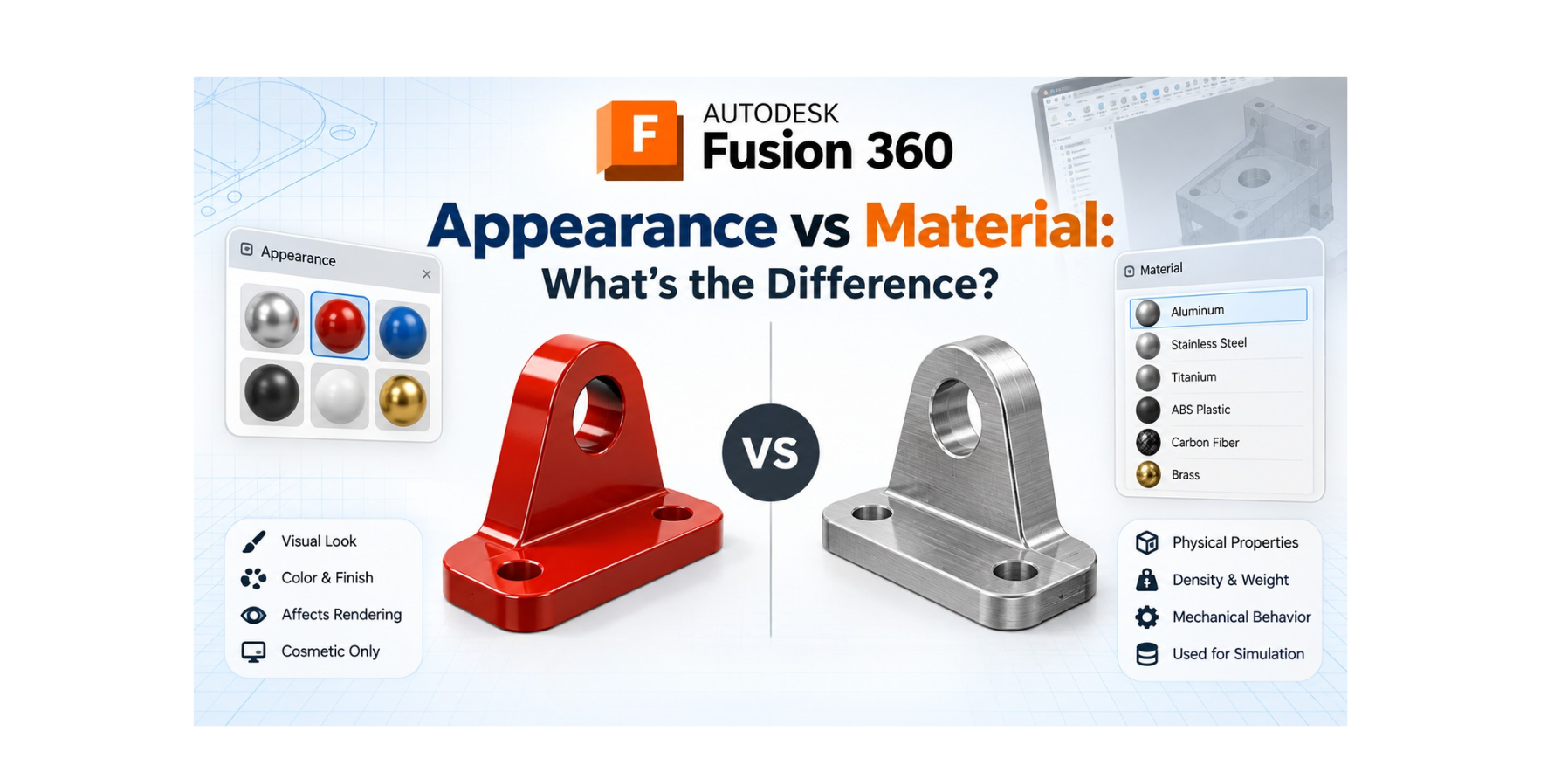
When working in Autodesk Fusion 360, you may notice that changing the Appearance of a component can make it look like steel, aluminum, plastic, glass, or another material. But does changing the appearance actually change the physical material of the part?
No.
Fusion 360 separates the visual appearance of an object from its physical material properties. Understanding this difference is important when creating realistic designs, preparing models for manufacturing, or running simulations.
In this guide, we’ll explain the difference between Appearance and Material in Fusion 360, when to use each one, and how they affect your design.
What Is Appearance in Fusion 360?
Appearance controls how your model looks on screen.
It can change properties such as:
- Color
- Texture
- Surface finish
- Reflectivity
- Transparency
- Roughness
- Visual pattern
For example, you can make a component visually appear to be:
- Brushed aluminum
- Polished steel
- Matte plastic
- Rubber
- Glass
- Wood
- Painted metal
However, changing the appearance does not automatically change the physical properties of the component.
Example
Suppose you have a part made from plastic. You can apply a brushed aluminum appearance to make the model look metallic. The model will visually resemble aluminum, but Fusion 360 will not automatically treat it as an aluminum part for physical calculations.
What Is Material in Fusion 360?
Material represents the physical properties of the component.
Depending on the Fusion 360 workflow, physical materials can contain properties such as:
- Density
- Mass
- Young's modulus
- Poisson's ratio
- Thermal properties
- Strength-related properties
- Other engineering characteristics
Material information becomes important when you need accurate engineering calculations.
For example, changing a component from plastic to aluminum can significantly affect its:
- Mass
- Weight
- Center of mass
- Structural behavior
- Simulation results
- Manufacturing considerations
So, while Appearance answers: "What should this part look like?"
Material answers: "What is this part physically made of?"
Appearance vs Material: Quick Comparison
The key idea is simple:
Appearance = Visual properties
Material = Physical properties
How to Change Appearance in Fusion 360
Changing appearance is useful when you want to create a visually realistic model or presentation.
Step 1: Open the Appearance Tool
In Fusion 360, open the Appearance tool from the design environment. You can also access it through the relevant Modify tools depending on your workspace and Fusion 360 interface version.
Step 2: Browse the Appearance Library
Fusion 360 provides different appearance categories, such as:
- Metals
- Plastics
- Glass
- Rubber
- Ceramics
- Wood
- Paint
- Other surface finishes
Step 3: Apply an Appearance
Select the desired appearance and apply it to the required:
- Body
- Component
- Face
You can then adjust the visual result according to your design requirements.
How to Assign Physical Material
If you need the component to represent a specific physical material, use the physical material workflow rather than simply changing its appearance.
A typical workflow is:
- Select the component or body.
- Open the physical material options.
- Browse the available material library.
- Select the required material.
- Apply it to the appropriate component.
- Verify the resulting physical properties.
For example, you could assign:
Aluminum → Aluminum alloy → Steel → ABS plastic → Nylon
depending on your design requirements and available material definitions.
Does Changing Appearance Change Mass?
No.
This is one of the most important things to remember.
Imagine you have a component assigned a plastic material. If you change its appearance to stainless steel, the model may look like stainless steel, but its physical material definition does not automatically become stainless steel.
Therefore, simply changing the appearance should not be treated as changing the engineering material. If accurate mass or physical calculations are required, make sure the appropriate physical material is assigned.
Why Is This Difference Important?
Understanding Appearance and Material becomes particularly important when working on professional CAD projects.
1. Mass Properties
Different materials have different densities. For example, an aluminum component and a steel component with identical geometry will have different masses.
Therefore, the physical material assignment matters when calculating:
- Mass
- Volume
- Center of mass
- Moment of inertia
2. Simulation
Engineering simulations require appropriate physical properties. For example, a structural analysis may require material characteristics such as:
- Elastic modulus
- Poisson's ratio
- Yield strength
- Density
Simply making a part look like steel by changing its appearance does not provide the engineering properties needed for a meaningful simulation.
3. Product Visualization
Appearance is particularly useful for:
- Product presentations
- Design reviews
- Marketing images
- Rendering
- Concept visualization
You may want a prototype to visually resemble anodized aluminum, painted steel, or a particular plastic even before the final manufacturing material has been selected.
4. Manufacturing Design
When preparing a design for manufacturing, physical material information becomes much more important. Material selection can influence:
- Manufacturing process
- Weight
- Strength
- Cost
- Thermal behavior
- Machining requirements
- Surface finishing
Therefore, designers should not confuse a realistic-looking surface with an actual material specification.
Can You Use Appearance and Material Together?
Yes — and this is often the ideal workflow.
You can assign a physical material to a component and separately control its appearance.
Example 1:
- Component: Machine Bracket
- Physical Material: Aluminum alloy
- Appearance: Brushed aluminum
Result: Correct physical material data paired with realistic visualization.
Example 2:
- Component: Plastic Housing
- Physical Material: ABS
- Appearance: Matte black plastic
Result: Communicates both core engineering specs and cosmetic finish.
Appearance vs Material: A Simple Real-World Example
Imagine designing a bicycle frame.
You assign the frame:
Physical Material → Aluminum
This helps Fusion 360 understand the physical characteristics of the component.
Then you apply:
Appearance → Glossy red painted metal
Now your model can represent both:
- What it is made from: Aluminum
- What it looks like: Red painted metal
This separation is extremely useful in professional product design.
Common Mistakes to Avoid
Mistake 1: Assuming Appearance Changes Material
Applying a steel appearance does not automatically mean the part is made from steel.
• Solution: Assign the appropriate physical material separately.
Mistake 2: Using Appearance for Simulation
A realistic-looking material is not a substitute for engineering material properties.
• Solution: Verify the physical material and its properties before performing engineering calculations.
Mistake 3: Using Only Material for Visualization
A physically correct material may not always produce the exact visual finish you want.
• Solution: Use physical material for engineering information and Appearance for visual presentation.
Mistake 4: Forgetting Material Assignment
A visually complete model can still lack the correct physical material definition.
• Solution: Check material assignments before generating mass properties or using simulation workflows.
When Should You Use Appearance?
Use Appearance when your primary goal is visual communication. For example:
- Creating product renders
- Showing different color options
- Creating realistic presentations
- Demonstrating surface finishes
- Preparing marketing visuals
- Comparing product concepts
When Should You Use Material?
Use Material when physical properties matter. For example:
- Calculating mass
- Checking center of mass
- Performing engineering analysis
- Preparing manufacturing documentation
- Evaluating material-dependent design behavior
- Working with simulation workflows
Best Practice: Use Both
For professional Fusion 360 projects, you don't necessarily have to choose between Appearance and Material. Instead, use them for their intended purposes:
- Physical Material → Engineering information
- Appearance → Visual information
For example:
Physical Material: Stainless Steel
Appearance: Brushed Stainless Steel
This creates a model that is both physically meaningful and visually realistic.
Final Takeaway
The difference between Appearance and Material in Fusion 360 is simple but important.
Appearance controls how your model looks.
Material defines what your model is physically made of.
Changing a model's color, texture, or surface finish does not automatically change its physical material or engineering properties. For professional CAD workflows, use Appearance for visualization and Physical Material for engineering and manufacturing information.
Once you understand this distinction, you can create Fusion 360 models that are not only visually accurate but also better prepared for engineering workflows.
Want to Learn Fusion 360 Through Real Projects?
Improve your design skills through hands-on practical training. Master modeling, sculpting, and real product development with the Fusion 360 Mastery Pack from CADArtifex.
6-in-1 Course Combo • Build Real Projects • Practical CAD Skills
 - 452-360x220.png)
 - 6663-360x220.png)
